
Contents
A new (or new-to-you) MacBook is unboxed in no time, but how do twenty years of photos, documents and apps get across? Apple's Migration Assistant handles this surprisingly completely, if you choose the right method. Here is the guide for all three routes.
Preparation: three things before you start
- Updates: Bring both Macs to a current macOS version if possible, this avoids compatibility issues during the move.
- Power: Plug both devices into their chargers, a transfer can take hours depending on the amount of data.
- Decluttering pays off: The move is the perfect moment to clear out the Downloads folder and old apps, whatever does not come along does not need to be transferred.
Method 1: Mac to Mac (the standard case)
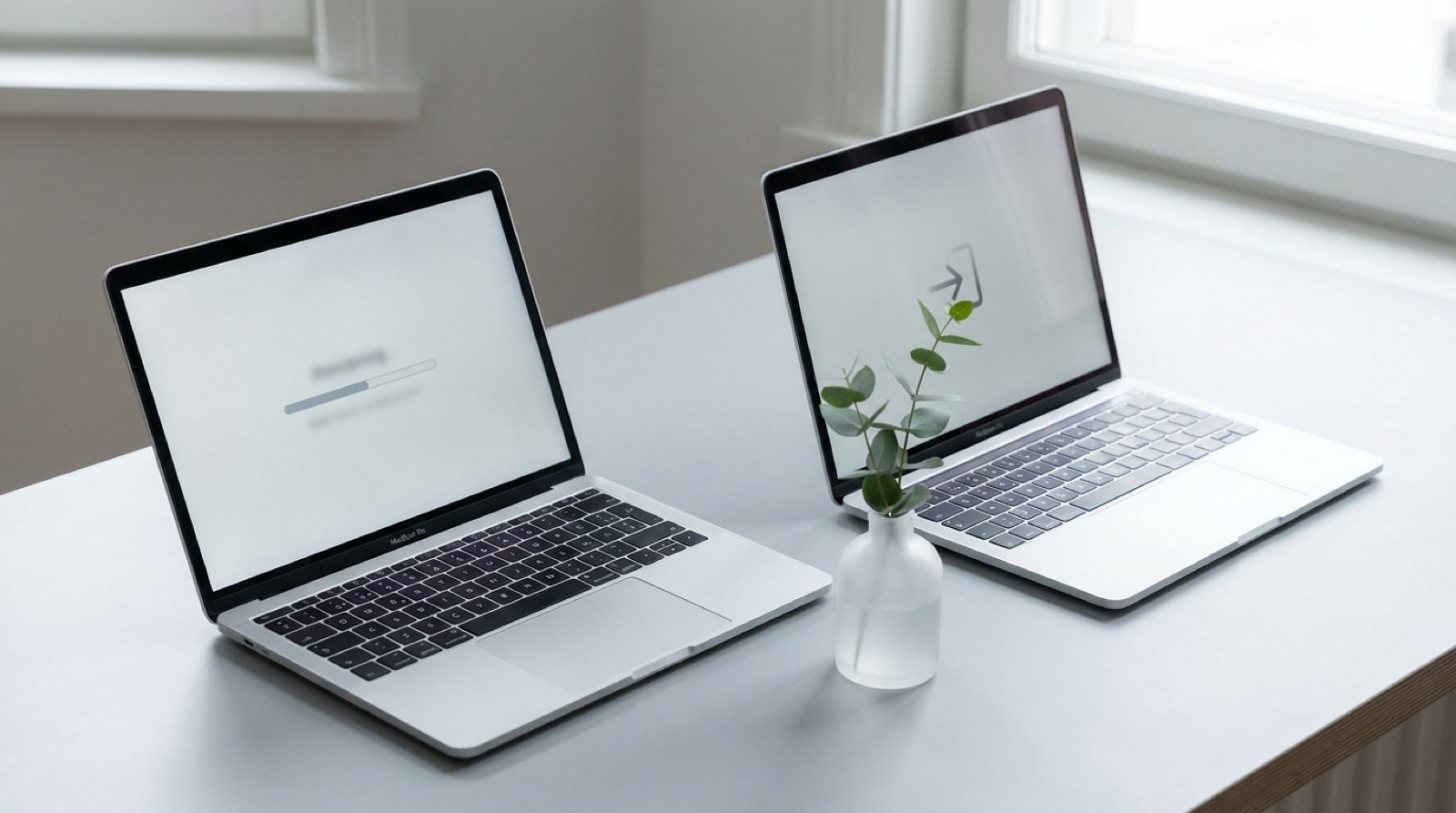
Launch Migration Assistant on both devices (Applications, Utilities), on the new Mac it already appears during initial setup. On the new Mac choose Transfer from a Mac, on the old one Transfer to another Mac. The connection runs over Wi-Fi, but it is much faster if both devices are connected by cable (Thunderbolt/USB-C). Then you select what comes along: user accounts, apps, settings, files. After the move you sign in once with your Apple ID, and the new Mac feels just like the old one, only faster.
Method 2: from a Time Machine backup
If the old Mac is defective or already sold, the Time Machine backup steps in: connect the external drive, choose Transfer from a Time Machine backup in Migration Assistant, pick the snapshot, done. That is why the rule is: always make one last Time Machine backup before selling your old Mac.
Method 3: from a Windows PC
Switching from Windows is covered too: install Apple's Windows Migration Assistant on the PC, connect both devices to the same network and follow the prompts. Documents, pictures, mail accounts and more are transferred, Windows programs naturally are not, you install their Mac versions fresh afterwards.
The typical pitfalls
- App licences: Deactivate paid software (Adobe, Office) before wiping the old Mac, activations are often tied to the device.
- Two-factor apps and browser profiles: After the move, click through once to check everything is signed in.
- Enough storage: The new Mac needs room for the old data, so when buying, pick one storage tier of headroom.
Not in the mood for tech? We take over
Our workshop also performs data transfers for Macs, complete and verified, in Basel, Bern and Solothurn. And once the old Mac has served its time: sell it instead of letting it gather dust, and get a refurbished MacBook from us, tested and with a 1-year warranty.
Frequently asked questions
How long does a Mac migration take?
Do apps and licences move over too?
Can I migrate from a Windows PC to a Mac?
What do I do with the old MacBook?
Related to this article
Instant quote in 2 minutes, payout within 24 hours after inspection. Or buy certified refurbished with a 1-year warranty and 14-day returns.