


 Smartphone
 Tablet
 Watch
 Music
 MacBook
 Accessories

Contents
If your SIM is not recognised or your phone has no signal, start by distinguishing the message. “No SIM” or “Invalid SIM” concerns the card, plan or a carrier lock. “No Service” or “Searching” means the device is not connected to a mobile network at that moment. Check simple causes first and do not delete an eSIM profile on a guess.
1. Check the message and connection
Note the exact status message. Try a call and mobile data in another location. If the problem happens only inside one building, coverage may be involved. For “No Service”, Apple recommends turning Airplane Mode on for at least 15 seconds, then turning it off. Restart the iPhone afterwards.
2. Check your plan and coverage with the carrier
Ask your mobile provider whether your account is active, whether there is an outage where you are, and whether the SIM or eSIM is correctly set up for your plan. Only the carrier can check account details or remove a carrier lock. After switching provider, number porting may also still be in progress. Our guide explains how to keep your number when changing providers.
3. Reinsert a physical SIM carefully
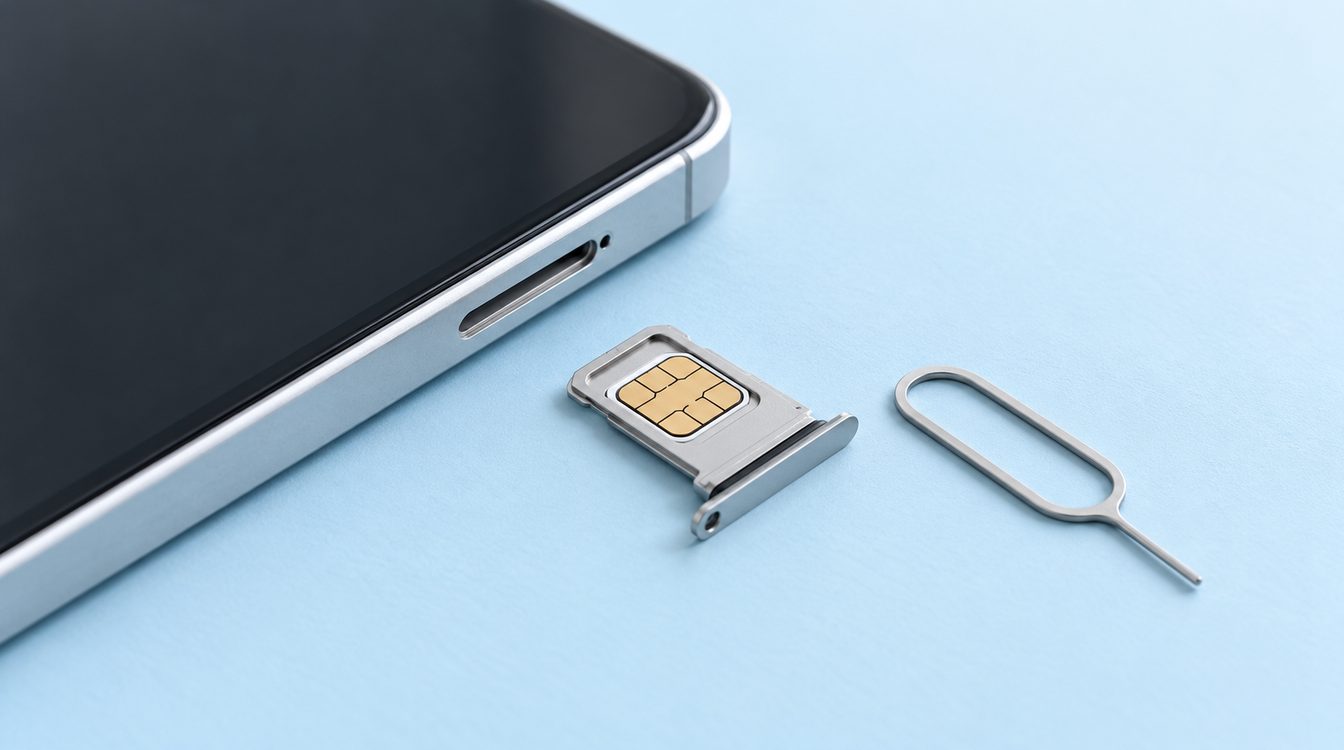
Turn off the device if the manufacturer’s instructions for your model call for it, then remove the SIM with the proper tool. Check that the card is clean, correctly aligned and that the tray closes flush. Use only the tray made for your model and do not force it. Apple recommends reinserting the card and asking the carrier to test another one if the alert persists.
For eSIM, check in cellular settings that the line is switched on. Do not remove the profile without guidance from your carrier, since reactivation may require a new QR code or support. Our guides explain setting up an eSIM in Switzerland and choosing between eSIM and a SIM card.
4. Check carrier lock and settings
On iPhone, go to Settings, General, About and look for Carrier Lock. Apple says “No SIM restrictions” means the iPhone is unlocked. If a restriction appears, contact the previous carrier. On the same About screen, check whether a carrier settings update is offered. Updating iOS may also help if Apple or your carrier has addressed an issue.
When should the phone be inspected?
If a physical SIM remains unreadable after trying another card, or reception fails across locations and carriers, the device may need inspection. Do not bend the tray or open the phone yourself. Ask the repair service to assess the cause. If you need another device, compare the smartphone range. You can select your current phone on the sell a phone page.
Conclusion
Check the status message, Airplane Mode and restart, coverage and plan, SIM seating, then carrier and network settings. This narrows down the issue without deleting an eSIM profile or data prematurely.
Frequently asked questions
What is the difference between “No SIM” and “No Service”?
Should I delete and reinstall my eSIM profile?
How do I check whether my iPhone is carrier locked?
Could the SIM card be faulty?
When should I have the phone checked?
Related to this article
Instant quote in 2 minutes, payout within 24 hours after inspection. Or buy certified refurbished with a 1-year warranty and 14-day returns.