


 Smartphone
 Tablet
 Watch
 Music
 MacBook
 Accessories

Contents
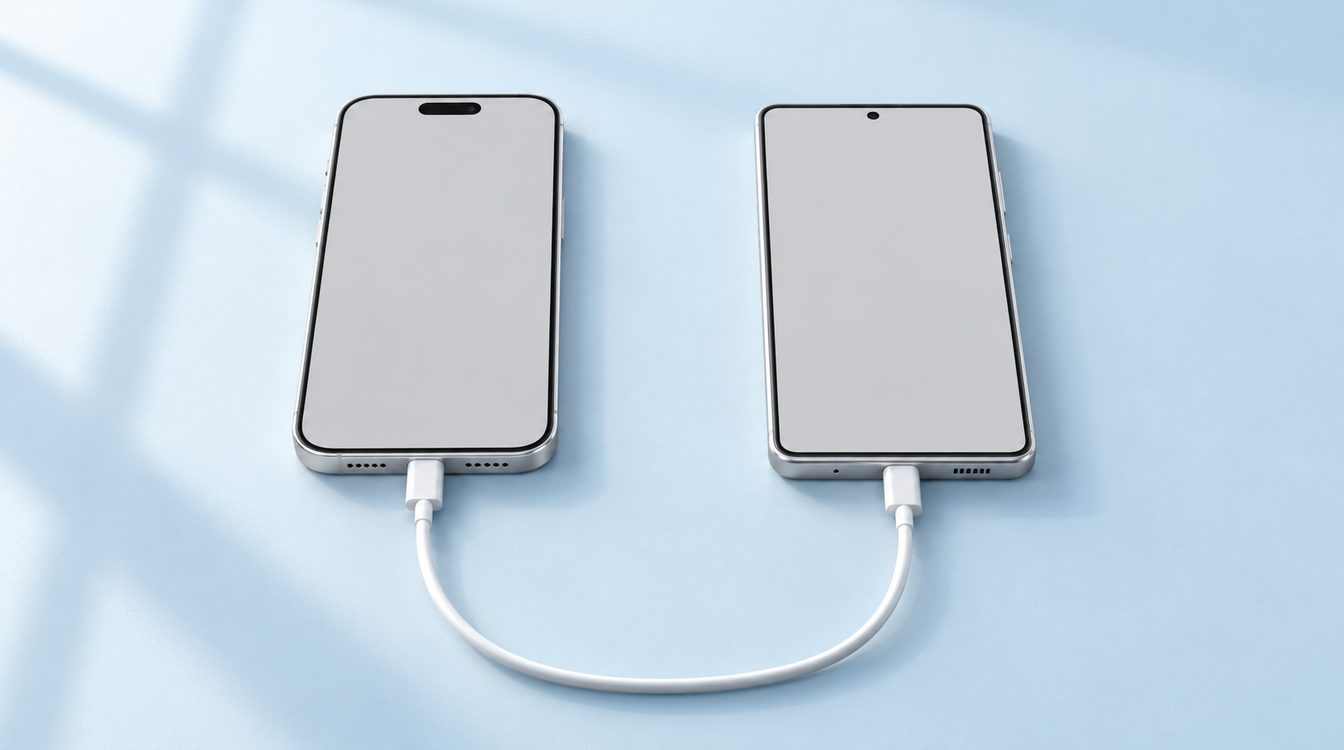
When switching from iPhone to a Samsung Galaxy, Smart Switch can transfer contacts, photos, videos and other selected content. WhatsApp chats follow a separate process: Samsung supports the transfer by cable, and you must not set up WhatsApp on the Galaxy until the transfer is complete. Back up your iPhone first and erase it only after checking your important content.
Prepare before moving your data
- Charge both phones and keep them connected to power during transfer where possible.
- Check that the Galaxy has enough space for photos, videos and chats.
- Install Smart Switch and WhatsApp updates if available.
- Keep the data cable that fits your iPhone model ready. Samsung documents WhatsApp migration by cable.
- Keep your iPhone until you have checked contacts, pictures, messages and WhatsApp on the Galaxy.
Transfer contacts, photos and other content
Open Smart Switch on the Galaxy, tap Receive data and choose iPhone or iPad. Connect the phones as instructed on screen. Approve access on the iPhone if prompted. Select the data categories you want and start the transfer. Samsung lists contacts, photos, videos, messages, calendars and other data types as transferable. What appears depends on the transfer method and devices.
For certain iOS and Android versions, Apple also documents a built-in transfer using a QR code during Android setup. It can move contacts, photos, calendars and messages; third-party app data depends on whether the app developer supports the transfer. For a Galaxy move, especially WhatsApp, Smart Switch is the more specific guide.
Move WhatsApp chats: cable and order matter
- Open Smart Switch on the new Galaxy and connect the iPhone by cable.
- Select WhatsApp in the list of apps and data to transfer.
- If a QR code appears on the Galaxy, scan it with the iPhone camera and follow WhatsApp’s prompts.
- Wait until Smart Switch finishes. Only then sign in to WhatsApp on the Galaxy.
Samsung requires the latest WhatsApp version on the iPhone and supports chat-history migration by cable only. If you sign in on the Galaxy before the transfer starts or finishes, Samsung says the app data cannot be transferred. Follow the current in-app instructions because supported data and requirements can change.
Deregister iMessage and check the transfer
If your number stops receiving SMS or RCS messages after the switch, Apple says you may need to deregister from iMessage. On the iPhone, open Settings, Apps, Messages and turn off iMessage. Turn off FaceTime too, or use Apple’s online deregistration if you no longer have the iPhone.
On the Galaxy, check that contacts are complete, open a sample of photos and videos, and confirm that important chats appear. Some apps need an Android version or a fresh sign-in. Not every app setting or protected item can be transferred.
Browse Samsung Galaxy phones, read the reverse guide to switching from Android to iPhone, and compare iPhone or Samsung.
Reset your old iPhone afterwards
Back up or transfer anything you want to keep, sign out of your Apple Account and remove Find My before erasing the device. Our pre-sale data deletion checklist covers the preparation. If you want to pass on the iPhone, select your model on the sell an iPhone page.
For a related guide, see Setting Up a New iPhone: Data Transfer Step by Step.
Conclusion
Use Smart Switch for general data and handle WhatsApp separately by cable. Do not sign in to WhatsApp on the Galaxy too early, turn off iMessage and check your important content before resetting the iPhone.
Frequently asked questions
Can I transfer WhatsApp wirelessly from iPhone to Samsung?
When can I open WhatsApp on the new Galaxy?
What can Smart Switch move?
Do I need to turn off iMessage?
When can I erase the iPhone?
Related to this article
Instant quote in 2 minutes, payout within 24 hours after inspection. Or buy certified refurbished with a 1-year warranty and 14-day returns.