


 Smartphone
 Tablet
 Watch
 Music
 MacBook
 Accessories

Contents
If your iPhone is stuck on the Apple logo, decide what to do by checking the screen first. If a progress bar is moving, leave the phone connected and let the update or startup finish. If the Apple logo has appeared for several minutes without a progress bar, try a force restart. If it remains stuck, Apple’s next step is recovery mode with a computer. The “Restore” option erases the data on the iPhone.
There is a qualified exception: Apple says the progress bar can move slowly or appear static. If an update or restore never completes, or the device is unresponsive, you can try a force restart. If the Apple logo and progress bar remain afterward, service may be needed. See Apple’s progress-bar guidance.
Start with these points
- Do not interrupt an active progress bar by pressing button combinations or disconnecting the cable.
- A force restart and recovery mode are different procedures with different screen endpoints.
- At the computer, choose “Update” first. “Restore” erases data.
- If a button is stuck or Update and Restore fail, contact Apple Support or a qualified service provider.
1. Is a progress bar active?
If you see a bar under the Apple logo and the process is moving, wait. During an update, the bar can move slowly or appear static. Apple says to let the device complete the process and provides more detail in its guide to the Apple logo with a progress bar. Do not restart the device or disconnect its power while an update is visibly in progress.
If there has been no progress bar for several minutes, continue to the restart steps. If the screen says “Connect to computer,” go directly to recovery mode.
2. Try a force restart
A force restart is for a device that is not responding. On a newer iPhone, quickly press and release Volume Up, quickly press and release Volume Down, then press and hold the side button. Release the side button when the Apple logo appears. Apple describes this sequence in the iPhone User Guide.
On iPhone 7 or 7 Plus, press and hold the side button and Volume Down together until the Apple logo appears. On iPhone 6s or earlier, including iPhone SE (1st generation), press and hold the Home button and the side or top button together until the logo appears. For a force restart, the Apple logo is the endpoint. To enter recovery on a computer, keep holding the model’s buttons until “Connect to computer” appears.
3. Use recovery mode with a computer
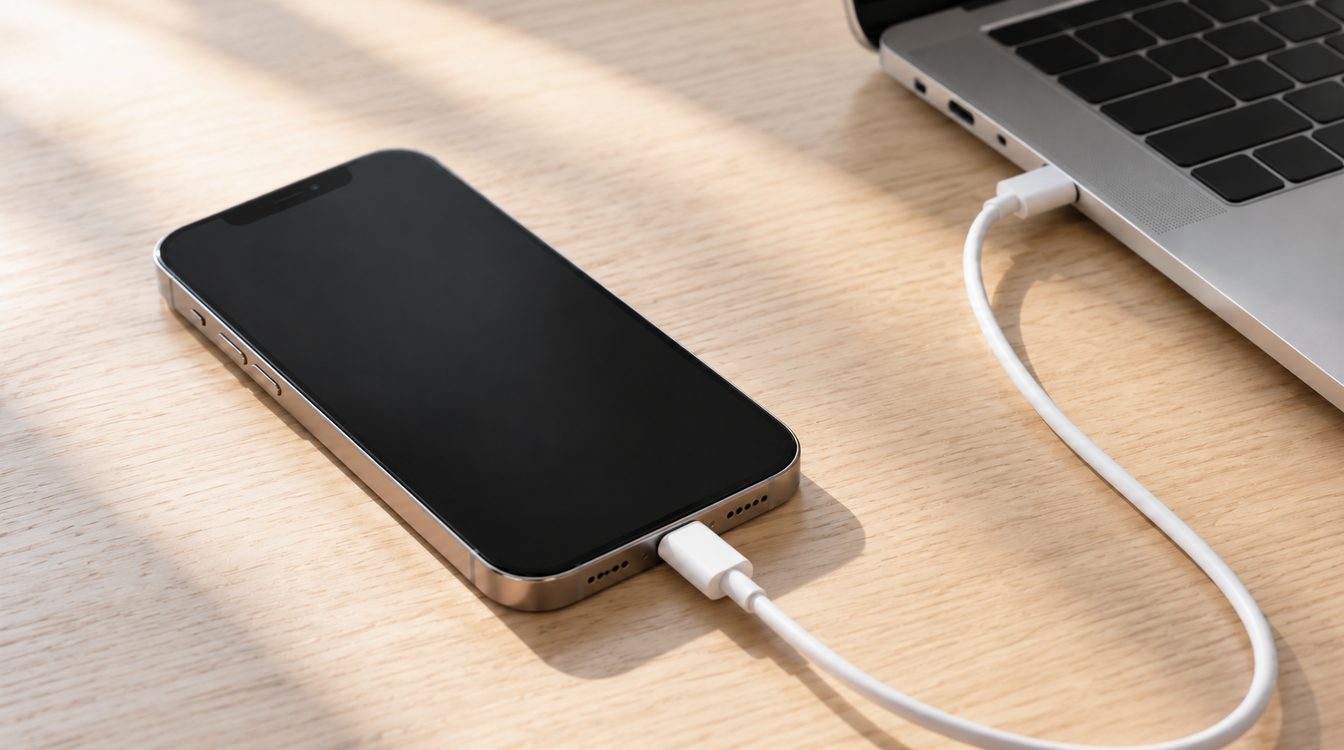
Connect the iPhone to a Mac or PC with a USB cable. On a Mac, open Finder. On a PC, open the Apple Devices app. Wait for the computer to recognise the phone. Then use the buttons for your model and keep holding them until the “Connect to computer” screen appears:
- iPhone 8 or later, including iPhone SE (2nd generation and later): quickly press and release Volume Up, quickly press and release Volume Down, then hold the side button.
- iPhone 7 and iPhone 7 Plus: hold the side button and Volume Down together.
- iPhone 6s or earlier, including iPhone SE (1st generation): hold the Home button and the top or side button together.
Do not release the buttons until “Connect to computer” appears. If Apple Devices or Finder offers “Update” or “Restore,” try “Update” first. It reinstalls iOS and is intended to keep personal data, though it may not work. “Restore” reinstalls iOS and erases all data on the device. Understand that consequence before choosing it.
If the download takes a while
If the software download takes more than 15 minutes, the iPhone may leave the “Connect to computer” screen. Let the computer finish downloading. Then repeat the button sequence for your model to enter recovery mode again and continue the on-screen step. You do not need to cancel the download just because the iPhone changes screens while it is in progress.
When to get help
If the computer does not recognise the device, a button does not work reliably, or Update and Restore cannot complete, read Apple’s guide to updating or restoring an iPhone and contact Apple Support if needed. If your phone starts again, check that your latest backup is available. Regular backups can help you recover data if a restore becomes necessary.
More help is available in our guides for iOS versions and updates, replacing an iPhone battery or phone, and securely erasing data before sale. Before selling, review these iPhone selling steps and browse available iPhones.
If the iPhone still will not start and preserving your files is the priority, follow our step-by-step data recovery guide.
Frequently asked questions
An Apple logo alone does not tell you whether an update is running or startup has stalled. The progress bar, time without visible change and connection to a computer help guide the next step. Follow the sequence and choose the data-erasing option only when you understand it.
Conclusion
Wait while an active progress bar is moving. With no progress bar, try the force restart for your model. If that does not help, connect the iPhone to Finder or Apple Devices and enter recovery mode. Try “Update” first because “Restore” erases all data.
If Update or Restore fails, or a button is stuck, the phone may need service. See local repair options.
Frequently asked questions
Should I restart my iPhone while a progress bar is visible?
When should I use recovery mode?
Will “Update” erase my data?
What if the download takes more than 15 minutes?
Related to this article
Instant quote in 2 minutes, payout within 24 hours after inspection. Or buy certified refurbished with a 1-year warranty and 14-day returns.